My terminal has been my home for several years now.
I have fallen in love with the customizability, speed, and lack of context switching. All I need to do I can do from one place. And so, I’ve had no desire to visit my old friend Electron ever since.
Getting to this point took a lot of research and experimenting. I read through
hundreds of zsh and nvim setups others had shared online to pick out the
few gems. Then, I would trial them in my own config, deleting the things that
didn’t stick. A courteous open-source warrior would release a new, faster tool,
forcing me to throw out my previous work and start anew.
Now, I’ve come to a point where I feel comfortable sharing my config with others.
The Goal
At this point you might wonder why go through all this effort.
My ultimate goal is to reduce the effort it takes to get things done on my computer. This is a problem of navigation and context switching disguised as one of avoiding the UI.
If you spend a lot of time using a computer, you probably learned touch-typing at some point because the interruption of looking at the keyboard for every keystroke became too much of a burden. The natural extension of this is removing mouse usage.
Navigation, getting where you want as fast as possible to do your task, is the 2nd most important part of using your computer after typing.
A part of me dies inside whenever I see someone with 10 small, slightly
off-center windows reach for the mouse to select the one that is hopefully
their application. A friend of mine started using a window manager, cmd-tab,
and cmd-t at work and is now getting paid extra to teach “modern computer
usage” at their medical practiceI wish I was making this up..
My personal nightmare. Scattered windows navigated by mouse clicks.
But, skipping the mouse to switch apps is not the end of our journey. cmd-tab
still requires you to pull up a small menu, visually identify the app you want,
and navigate to it. That’s a context switch from your main task, and certainly
not as fast as possible. If you’re in the Terminal and want to go to Chrome
that should be one shortcut.
Take a look at my workflow. I’m five navigation levels deep and can directly jump to any one I wantHere is another example of ThePrimeagen explaining the same concept..
A global shortcut (using Karabiner Elements) opens the app I need directly.
zoxide moves to any folder by frecency. No need to cd ../../
My primary coding tools are always in the same 3 tabs for instant switching.
Fuzzy search, LSP actions, and pinned files get me where I want to go.
Neovim lets me make large edits quickly.
The core principle of minimizing churn is applicable regardless of your technical skill. Nonetheless, we will focus on how I implement this principle in my developer environment. Nowadays, I spend my time with a coding agent, reviewing code with lazygit, or making occasional direct file edits with Neovim. A terminal based workflow lets me combine these three seamlessly since they all have direct integrations with each other. Furthermore, terminal tools are usually built around a great keyboard shortcut experience, so it is very easy to “just do the thing”.
Navigating My Computer
To make this vision come true, we need to map each App that I regularly use to a hotkey.
I use the Hyper key ✦, which is cmd + ctrl + opt + shift, with another key. For example, ✦T opens Ghostty and ✦S opens Slack.
The Hyper key is great because it is never mapped by an existing App since pressing all 4 modifiers is almost impossible in normal usage.
So, how do I press them then?
I use Karabiner Elements to
enhance my keyboard. I have overwritten my right cmd key to function as a
layer key. On this new keyboard layer, I now have access to the hyper key,
arrow keys, etc.. The arrow keys help with editing text outside of vim.
I also overwrote Caps Lock to be Esc on tap and Ctrl on hold. Esc is essential
for vim and Ctrl is used all over the place in the Terminal.
You can read more about the setup hereOr listen to Max Stoiber pitch his setup..
chezmoi diff ~/.config/karabinerchezmoi apply ~/.config/karabinerCustomizing your keyboard is a big topic that deserves its own blog post. For now, all I can say is that these modifications improve all the other tools on this list.
As my window manager, I just use Raycast’s built-in window hotkeys. This lets me quickly maximize and place windows. If you don’t use Raycast, I recommend Rectangle.
Installing pre-requisites
-
Install brew for package management on Mac.
-
Install my tools and apps. If you want to skip the apps, delete the
casklines.Terminal window # Please check the contents of the file before installing!curl -fsSL -o Brewfile https://raw.githubusercontent.com/ratoru/dotfiles/main/Brewfilebrew bundle --file=Brewfile -
Initialize my config using chezmoi. We will copy over relevant parts in the later sections.
Terminal window chezmoi init ratoru/dotfiles
Terminal - Ghostty
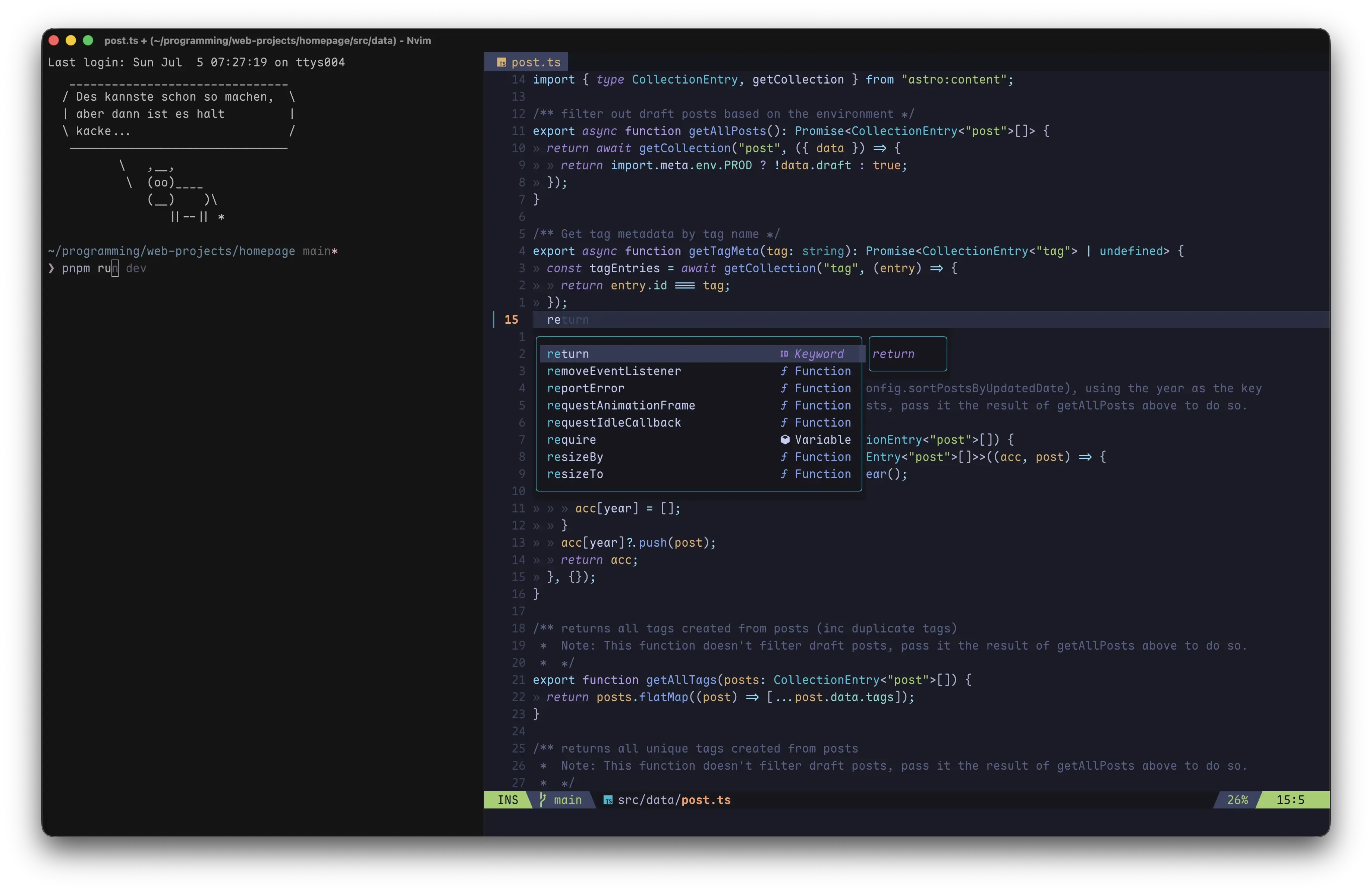
Ghostty is a smooth terminal that does all the basics very well. I use it because it comes with Nerdfont icons, so I don’t have to patch any of my fonts, its configuration is easy, and I like the look of it.
I use FiraCode as my font and vague as my theme. To get my exact config, run:
chezmoi diff ~/.config/ghosttychezmoi apply ~/.config/ghosttyGhostty recently added an Apple Script integration. I can now run
p <directory> to open a new window, navigate to the directory I want,
and open 3 tabs (Coding Agent, Neovim, Lazygit) with one commandI never had the need to use tmux, which simplifies my setup a lot.. See the code
here.
I hooked it up to a zsh function.
Shell - Zsh

The pure prompt with async git status.
I switched back to zsh from fish a while ago because
I could not get used to the scripting. zsh is Mac’s
default shell, and you will be able to take your settings
anywhere.
I recommend avoiding frameworks like Oh My Zsh. They install
a lot of plugins you will never use, and greatly slow down
your shell. I use the minimal plugin manager Antidote
since it was built around speed and helps me install the few plugins I need.
There are a few key ingredients to a pleasant shell experience:
- A nice prompt. I use pure since it has async git status, which is essential if you work in big mono-reposSee How to make git status run faster for more optimizations..
- Syntax highlighting using zsh-patina since it is a lot faster than the
standard
zsh-syntax-highlighting - zsh-autosuggestions for suggesting previous commands
I added other, smaller quality of life improvements such as zsh-history-substring-search and performance related plugins like evalcache and ez-compinit. Overall, I try to install as few plugins as possible.
chezmoi diff ~/.config/zsh ~/.zshrc ~/.zshenvchezmoi apply ~/.config/zsh ~/.zshrc ~/.zshenvA note on speed
Since the shell is our primary environment, its speed is crucial. I recently reduced my prompt lag by over 70%, and it feels like I bought a new computer.
If you want to measure your own shell speed, please don’t use a variant of this command:
time zsh -lic "exit"This popular snippet measures an artificial number.
It starts an interactive shell and immediately tears it down. So, we’re
measuring total init time plus teardown. But, that’s not what we care about.
When using zsh, we wait for the prompt to appear, the first command to fire, and
every keystroke to land.
To measure properly just use zsh-bench.
Here are my numbers after my most recent config rewrite. exit_time_ms is what the snippet
above measures.
| Metric | Before | After |
|---|---|---|
| creates_tty | 0 | 0 |
| has_compsys | 1 | 1 |
| has_syntax_highlighting | 1 | 0 (uses daemon) |
| has_autosuggestions | 1 | 1 |
| has_git_prompt | 1 | 0 (lazy loaded) |
| first_prompt_lag_ms | 672.337 | 155.931 (−61.9%) |
| first_command_lag_ms | 685.248 | 167.006 (−75.6%) |
| command_lag_ms | 113.474 | 26.074 (−77.0%) |
| input_lag_ms | 9.639 | 3.531 (−63.4%) |
| exit_time_ms | 553.970 | 120.192 (−78.3%) |
My core tools
Coding
Most of my work is done using coding agents. Since the tools change so frequently, it is not really worth giving a recommendation here at the moment.
For manual edits or a larger code review I use Neovim. And let me tell you: I absolutely love it! It’s been a snappier, more powerful, prettier coding experience that integrates perfectly with all my other tools on the list. Even if I had to use an IDE, I would immediately turn on a vim integration. Editing text is a complicated task and having a dedicated abstraction for it just makes sense to me. I want a system that can select functions, delete parameters, rename variables, jump to specific words, etc.
The community is full of amazing developers that create unique plugins
like oil.nvim that lets you modify a directory as a buffer. Open a folder
with neovim ~/.config/nvim and then you delete .json files using :%g/\.json/d.
Or, look at fzf-lua, which is the best search interface I have ever used with
many different pickers and a wonderful file preview.
If you have dabbled with Vim in the past, please do the following:
- Read this explanation of Vim’s powers.
- Spend some time with it. Changing interfaces increases your cognitive load. Not having a file tree on the left might leave you disoriented for a while, but that’s not really an indicator of whether or not you enjoy using Neovim.
Setting up Neovim is an entire blog post in and of itself. I have documented my approach here. To try my config run the following.
chezmoi diff ~/.config/nvimchezmoi apply ~/.config/nvimVersion Control
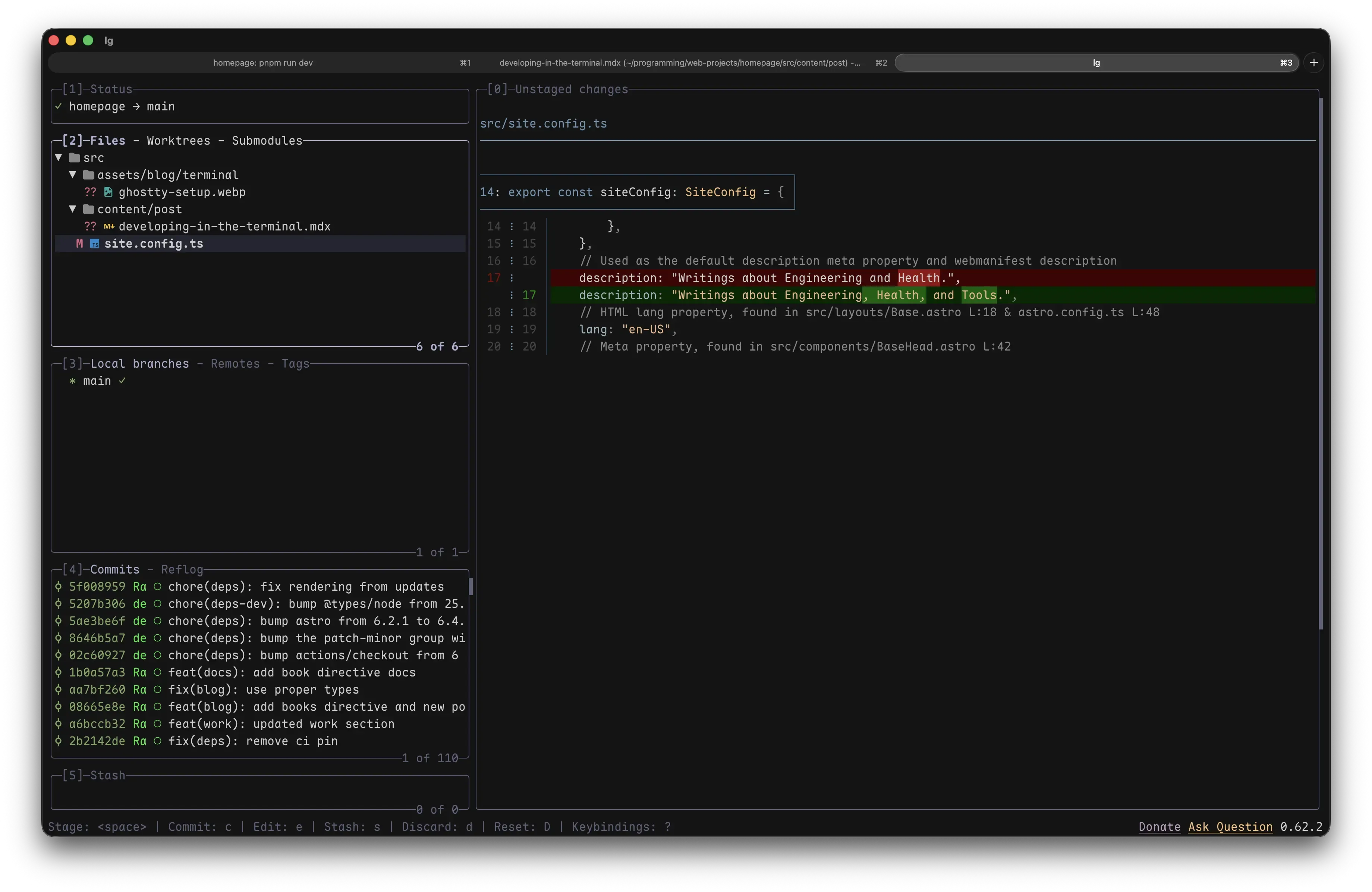
Due to coding agents, code review has become one of the most important parts of my workflow. I believe any git user will enjoy using Lazygit, a TUI interface built around keyboard shortcuts.
It includes a view of the diffs, so you can preview your changes.
For a better review experience I use Delta
to render the diffs. The diff can be further improved by setting
colorMoved = default and conflictstyle = zdiff3
in your git settings.
I love using Lazygit because it makes it very easy to review AI changes, and I
don’t have to memorize any lengthy git commands. All the shortcuts are easy
to remember. I can select the files I want to stage using <j><k><space>, open
a commit using <c>, and push using <P>. Then, I run gh pr create --fill | pbcopy to open the PR and copy the URL to my clipboard. Via ✦S, I open Slack
and send the PR to my team.
chezmoi diff ~/.gitconfig ~/.config/lazygitchezmoi apply ~/.gitconfig ~/.config/lazygitbat cache --buildI would like to try jj in the future. I heard its great for stacked PRs and agent use.
Project Navigation
Despite my claim that navigation is core to a good development experience, I have not covered any of the tools I use to navigate my projects. My workflow is built around the following:
- Zoxide lets you jump to any of your
folders by typing
z <proj>. By running this in a new window, I can quickly jump to where I want to go. - fzf is a fuzzy search tool used in all
kinds of places. It powers my file search in Neovim,
<ctrl>-rsearches my zsh history, and**<tab>will help you pick a file for a shell command. - The rest happens in Neovim.
No custom settings here!
Dependencies
I use mise to install all my programming languages. It makes managing different versions easy, and I don’t need to learn how to use each languages specific version manager.
Notably, please avoid nvm at all costs. It will slow down your shell a lot!
If you need a dedicated Node version manager, I can recommend fnm.